
Maintaining FBO Disbursement Accounts
Learn how to set up and maintain FBO disbursement accounts with PayNearMe, configure wire refill allocation percentages across payment methods, and initiate self-service fund withdrawals through the Business Portal.
Overview
To disburse funds via PayPal, Venmo, ACH, Debit Cards, or CashApp, clients must maintain a funded "for benefit of" (FBO) account with one of PayNearMe's banking partners: Cross River Bank or Wells Fargo. This article covers the three core aspects of managing an FBO account: setting up the account with your PayNearMe Technical Account Manager, defining wire refill allocation percentages to distribute incoming funds across disbursement products, and withdrawing funds directly through the Business Portal using the self-service withdrawal workflow.
Setting Up the FBO Account
Before You Begin. . .Before you can begin disbursing funds via PayPal or Venmo, you will need to work with your PayNearMe Technical Account Manager to set up an FBO account. Before this work can begin, your PayNearMe TAM will need the following:
Legal name of your business that is associated with your Tax ID/EIN
Your IRS Tax ID (EIN)
An estimate of your monthly sales volume (NOTE: This does not have to be an exact number)
A signed PayPal Processing Services Agreement
To support disbursements on the PayNearMe platform, clients must set up and fund a FBO account with one of PayNearMe’s banking partners:
-
Cross River Bank
-
Wells Fargo (PayPal/Venmo only)
Funding and refilling client FBO accounts is performed through direct wire transfers. This method ensures guaranteed funds are available within 1-2 hours after origination and gives clients more insight and control over balances and refill amounts. With this method, clients can allocate a percentage of wired refill funds to different disbursement accounts based on payment method (e.g., a disbursement account for PayPal, a disbursement account for ACH/Debit transfers, etc.). Admin users in the Business Portal can view real-time disbursement balances and define percentages for each disbursement account they maintain. In addition, clients have access to ad-hoc reports through the Business Portal that gives transactional details, including the running balance after each transfer.
Defining Refill Allocations
Wire disbursement allocation allows a client to send one incoming wire to its primary disbursement funding account and have those funds distributed across multiple disbursement accounts based on configured allocation percentages.
This supports clients that use more than one disbursement product, such as PayPal, Venmo, ACH, Debit Cards, and CashApp. Instead of sending separate funding transactions for each product, the client can fund the primary account once and rely on allocation rules to distribute the money.
How it Works
At a high level, the client wires funds to its primary funding account. After the wire is received and confirmed, the platform reads the client's configured allocation percentages and moves funds to the appropriate disbursement accounts.
- The client configures allocation percentages for supported disbursement accounts.
- The client sends an incoming wire to the primary funding account.
- The incoming wire is received and confirmed by the platform.
- The confirmed wire amount is allocated according to the client's configured percentages.
- Funds are moved to the applicable disbursement accounts.
- Balances and reporting are updated to reflect the movement of funds.
sequenceDiagram
    participant PNM as PayNearMe
    participant Client
    participant CRB as Cross River Bank
    participant WF as Wells Fargo

    Client->>PNM: Configure disbursement funding allocation (e.g. 60% PayPal / 40% ACH)
    Note over PNM,Client: Step 1 - CRB supports ACH/Debit Card, Wells Fargo supports PayPal/Venmo

    Client->>CRB: Wire transfer to CRB FBO Account
    Note right of Client: Step 2 - Takes 30-90 min, no PayNearMe visibility

    CRB->>CRB: Divide funding by allocation percentages
    Note right of CRB: Step 3a - ACH/Debit Card funds stay in CRB FBO Account

    CRB->>WF: Wire PayPal/Venmo funds to PayPal FBO Account
    Note right of CRB: Step 3b - Takes up to 30 min, no PayNearMe visibility

    CRB->>PNM: Balance Updated Webhook
    Note right of CRB: Step 4 - Sent once funding for each tender type clears

    PNM->>PNM: Update disbursement funding balances in Business Portal
    Note right of PNM: Step 5
Defining the Percentages
To define or change the allocation percentages, Admins must complete the following steps:
-
Log in to the Business Portal.
-
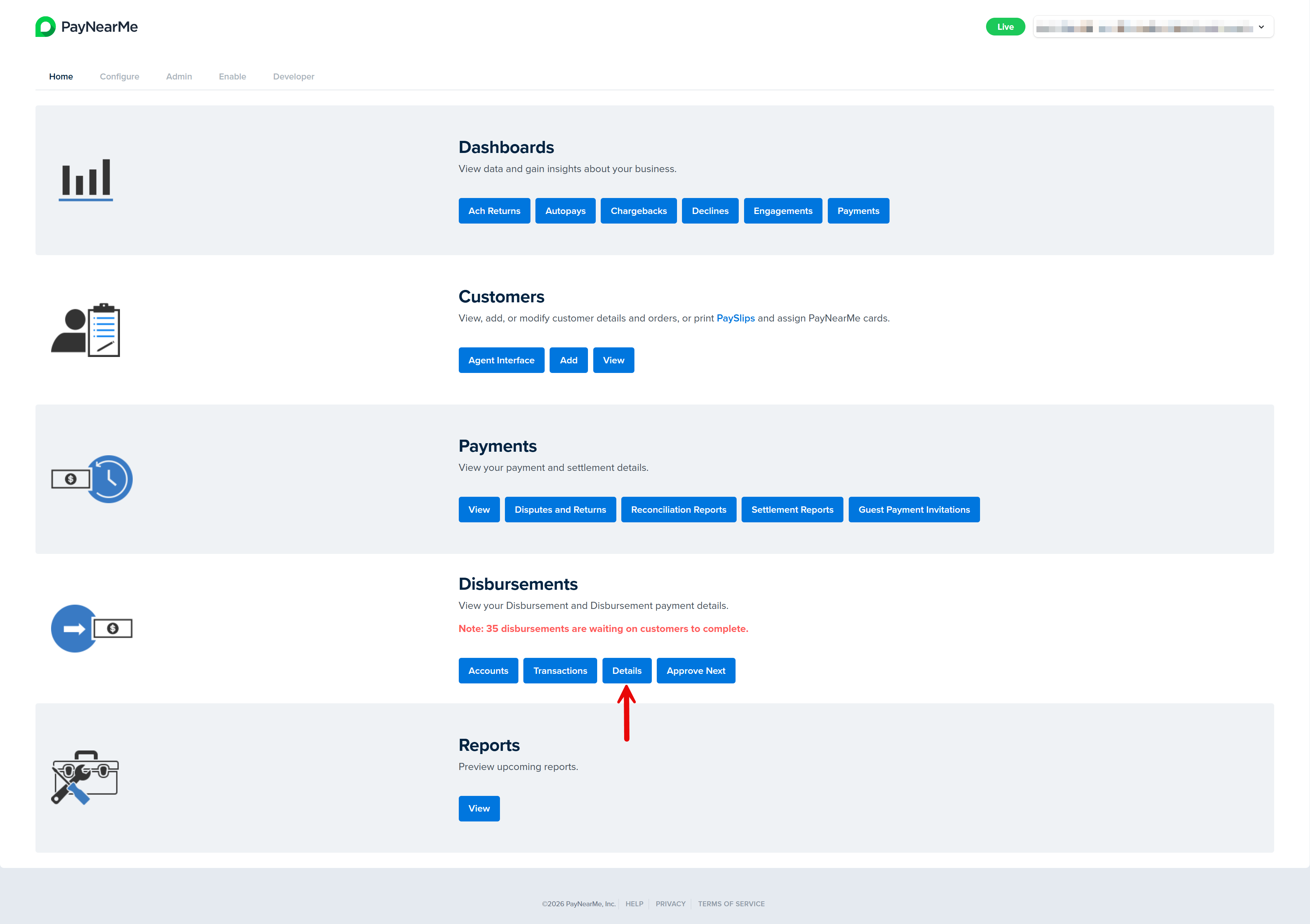
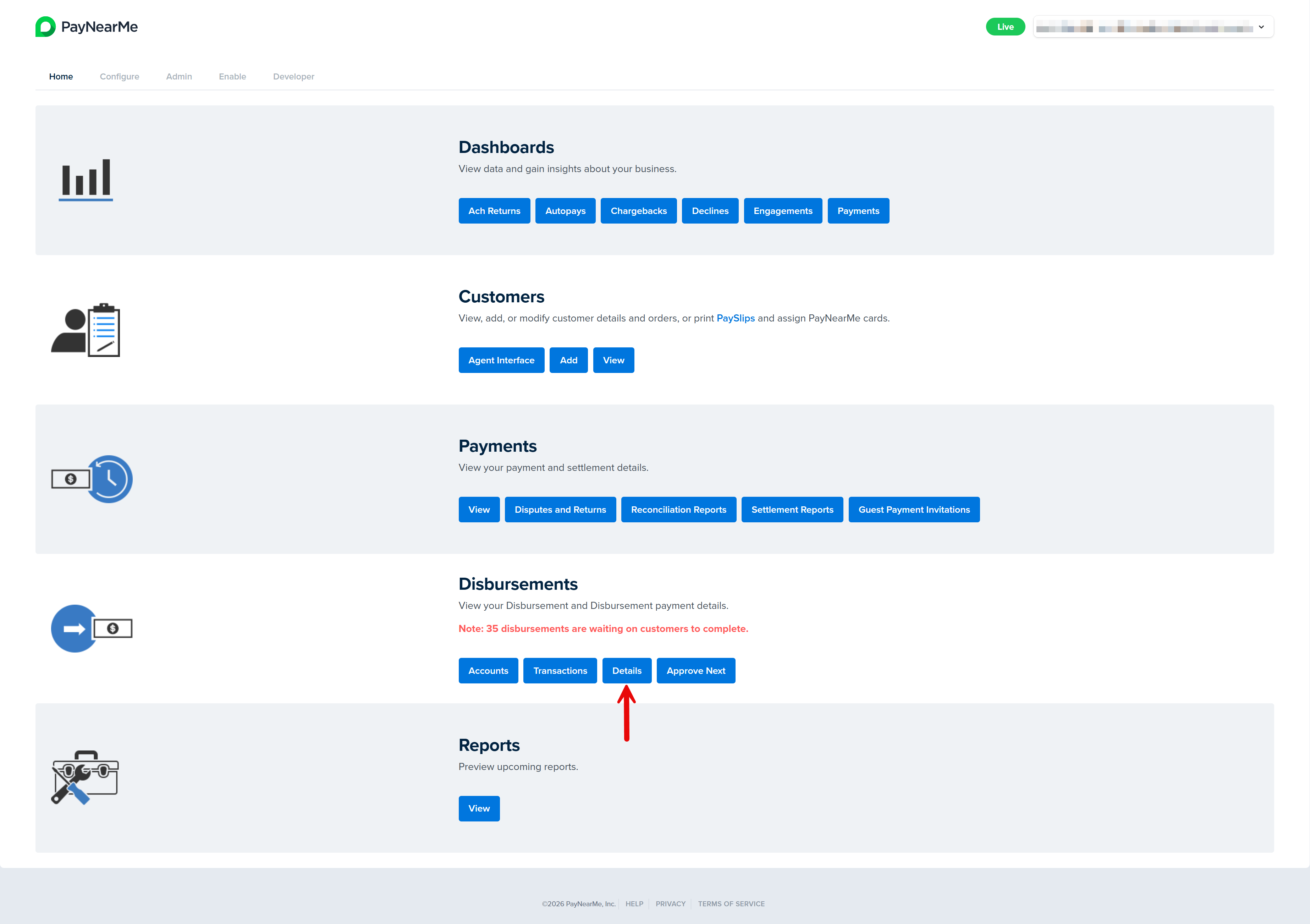
Navigate to Disbursements > Details.
-
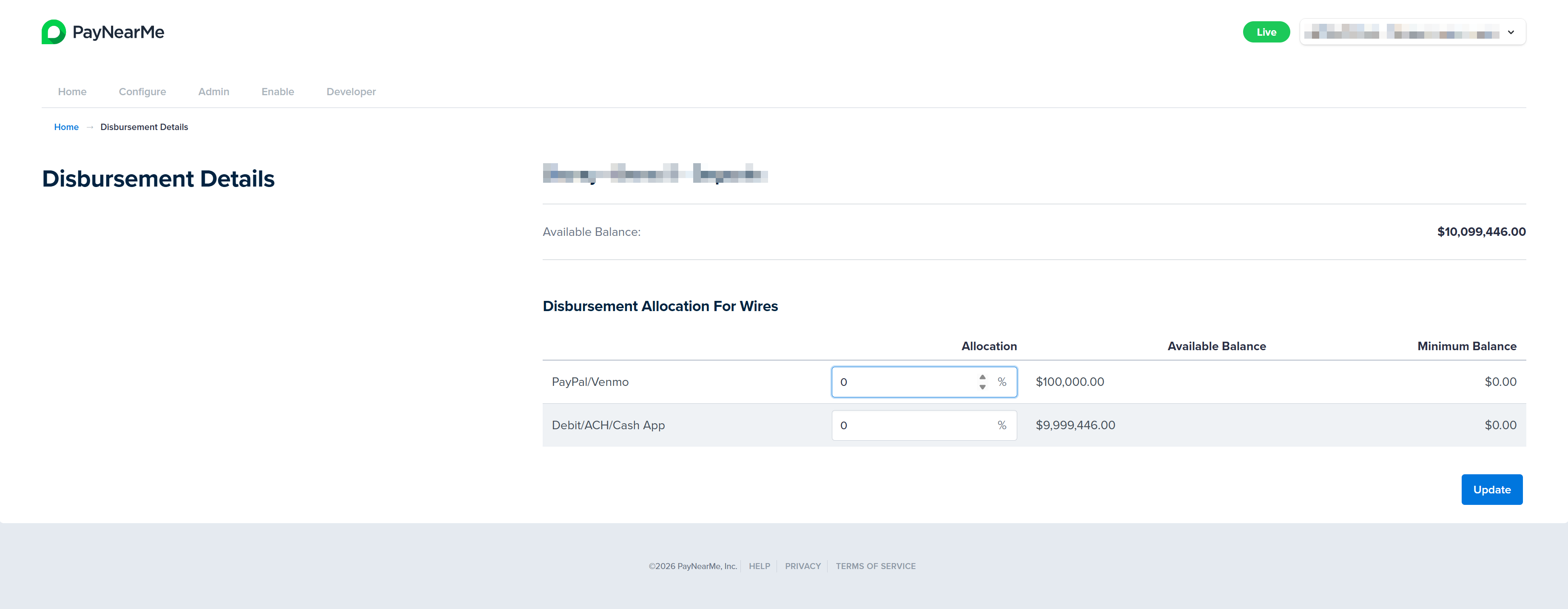
The Disbursement Details screen displays the current balance of the client's FBO account and the available balances for each payment method.
-
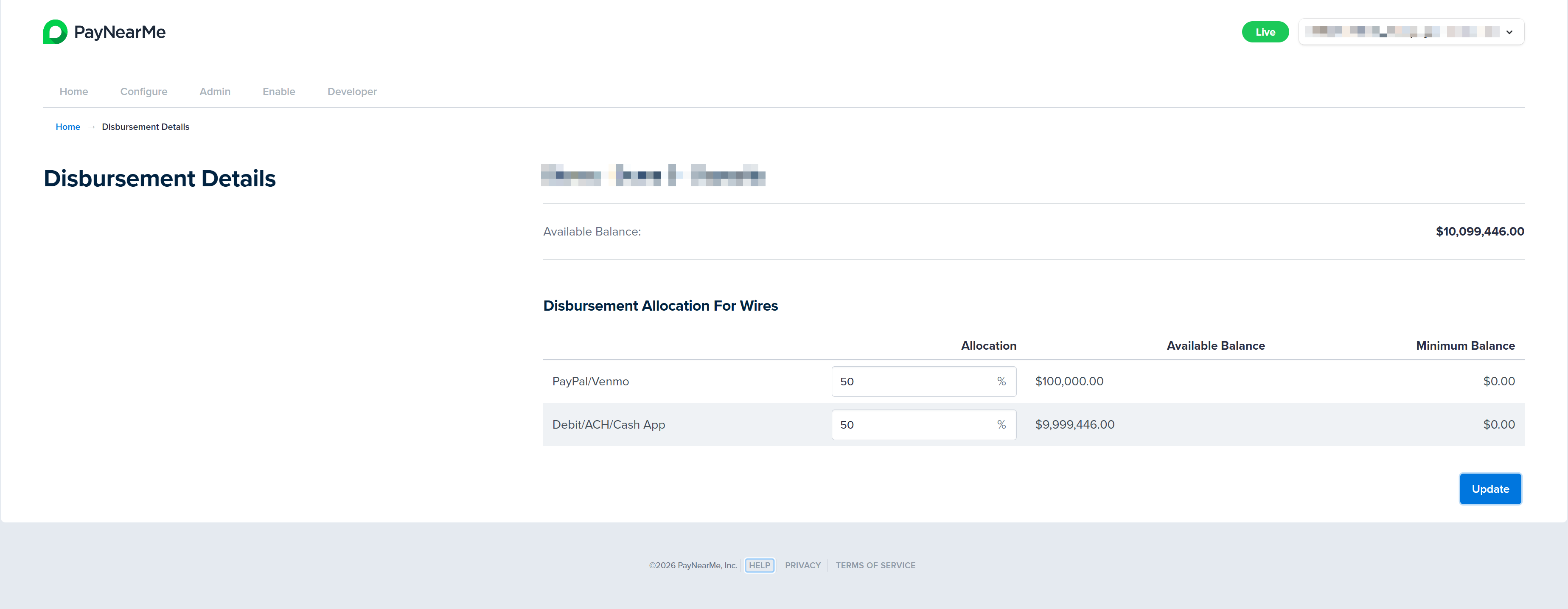
To define or change the allocation percentage for each payment method, enter the percentage amount in the Allocation field or use the arrows to increase or decrease the displayed percentage number. Allocation percentages must total 100%. Allocations of 0% are allowed and will result in no transfer being created for that account.
-
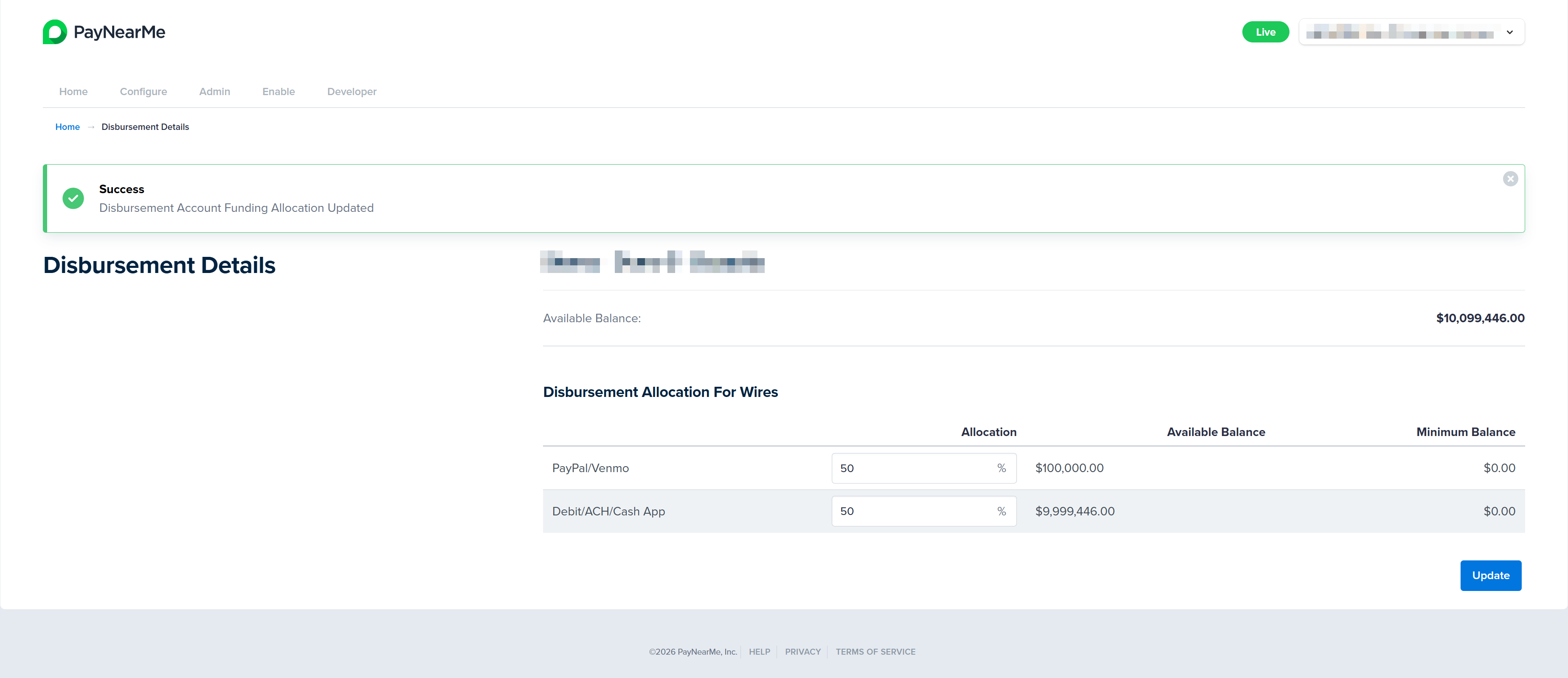
After updating the percentage amount, click Update. The Business Portal displays a message confirming if the update was successful.
PayNearMe will use these allocation percentages to fund each FBO disbursement account as you wire in future refill funds; existing funds are not moved based on changes to the allocation percentages.
Withdrawing FBO Funds
PayNearMe’s self-service withdrawal feature enables clients to withdraw funds directly through the Business Portal, eliminating manual processes and providing greater control, flexibility, and faster access to funds. With this enhancement, you can:
- Initiate withdrawals at any time, with a transaction limit of up to $1 million
- Manage withdrawals independently without contacting your Account Manager
- Withdraw funds to your ACH or debit account
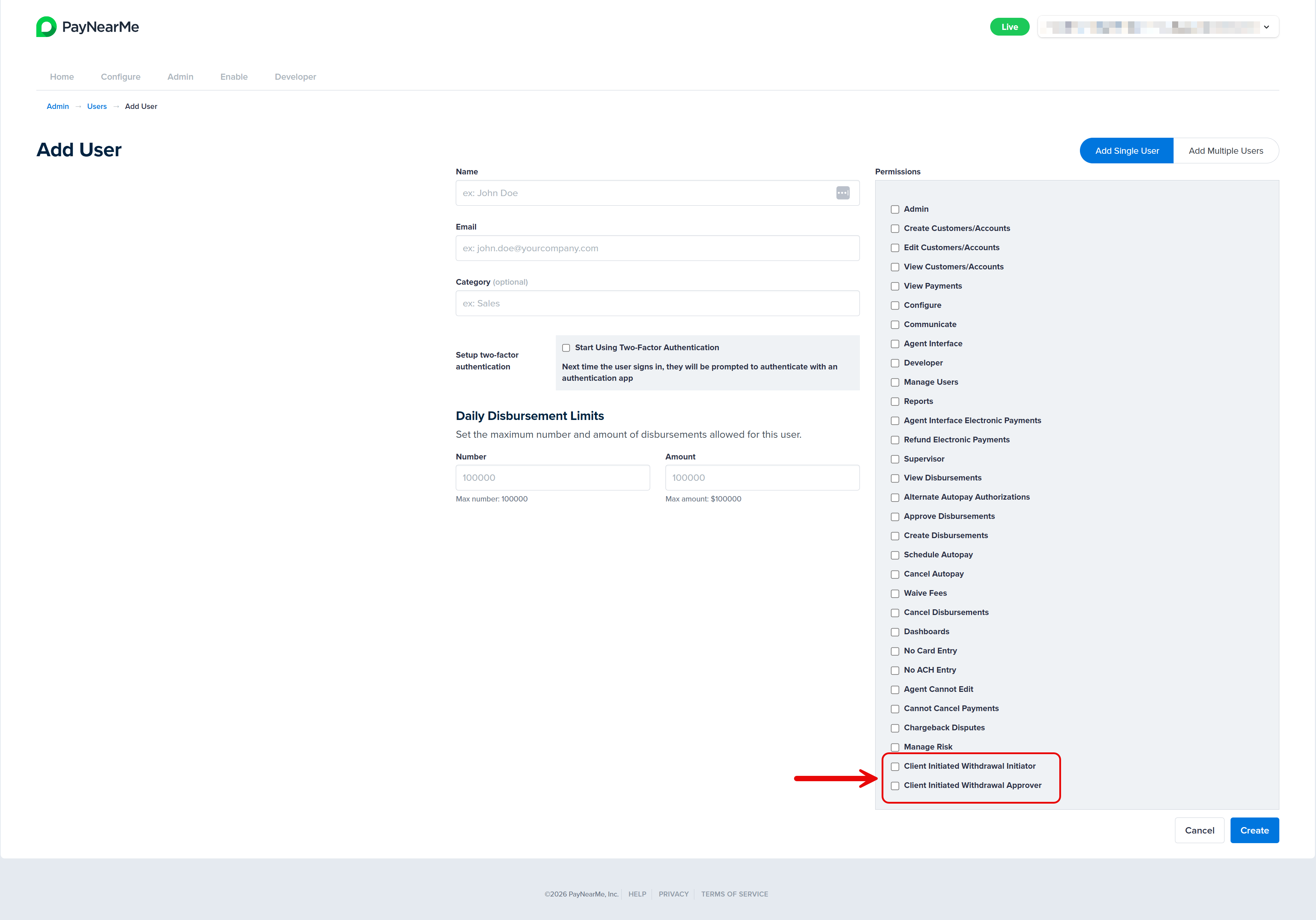
New Business Portal Roles
To support secure and controlled withdrawals, two new roles with distinct permissions have been introduced in the Business Portal. Your Site Administrator must assign these roles to enable users to access and manage the withdrawal workflow.
| Role | Description |
|---|---|
| Client Initiated Withdrawal Initiator | A user who can initiate withdrawal requests. The balance is automatically decremented upon initiation. |
| Client Initiated Withdrawal Approver | A user who can review, approve, or reject withdrawal requests. |
Disbursement Withdrawal Initiator
The Disbursement Withdrawal Initiator is responsible for creating and submitting withdrawal requests.
Initiator Workflow
-
Log in to the Business Portal.
-
Navigate to Disbursements > Details.
-
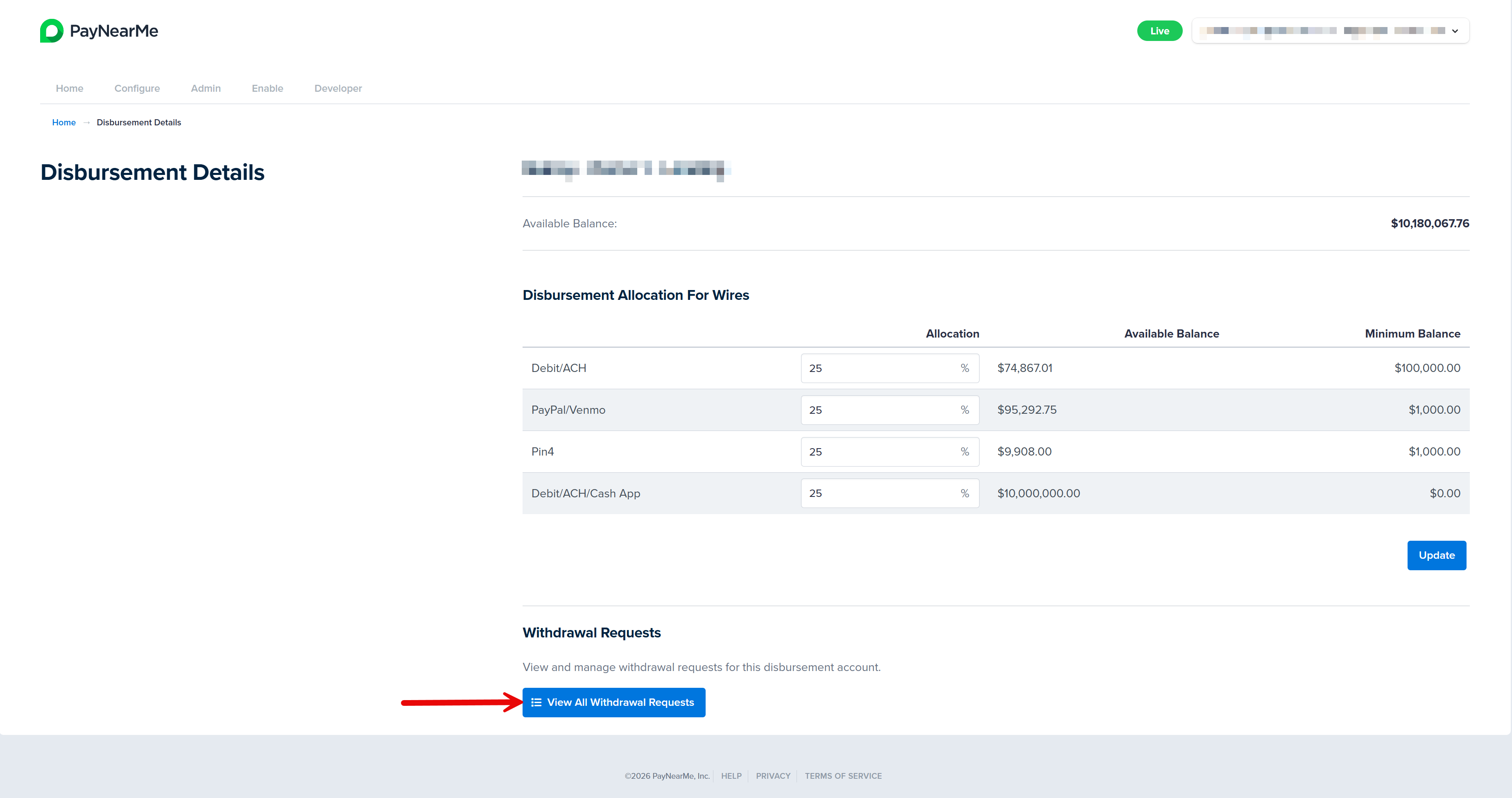
Click View All Withdrawal Requests.
-
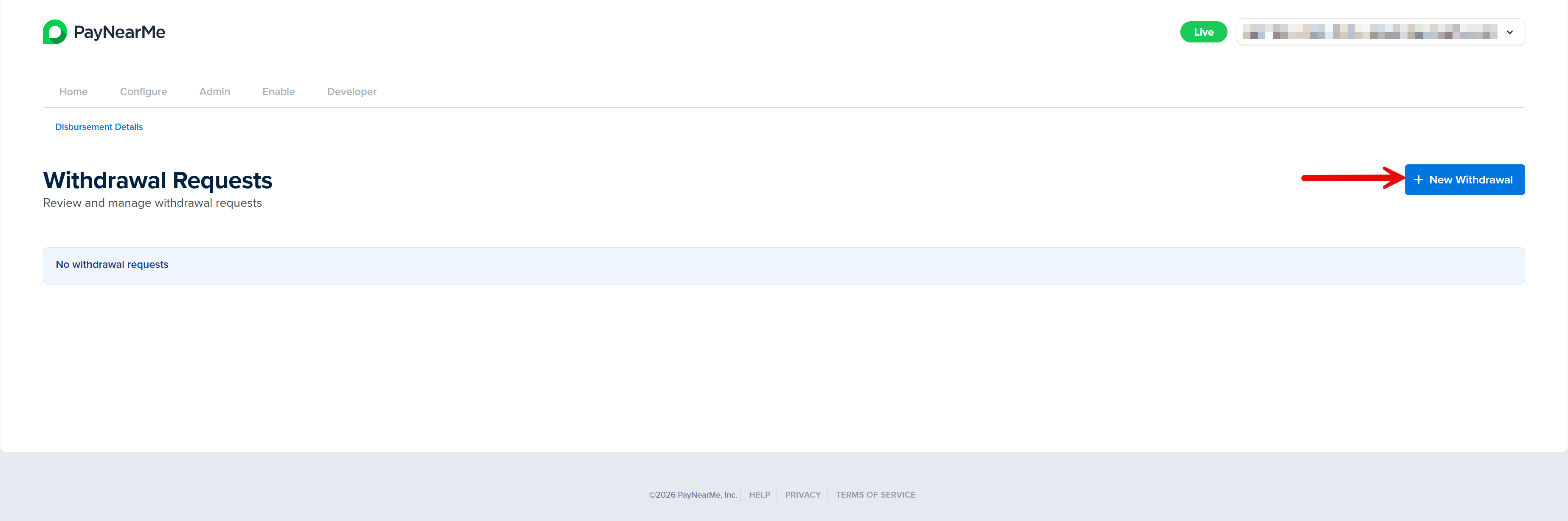
Click New Withdrawal.
-
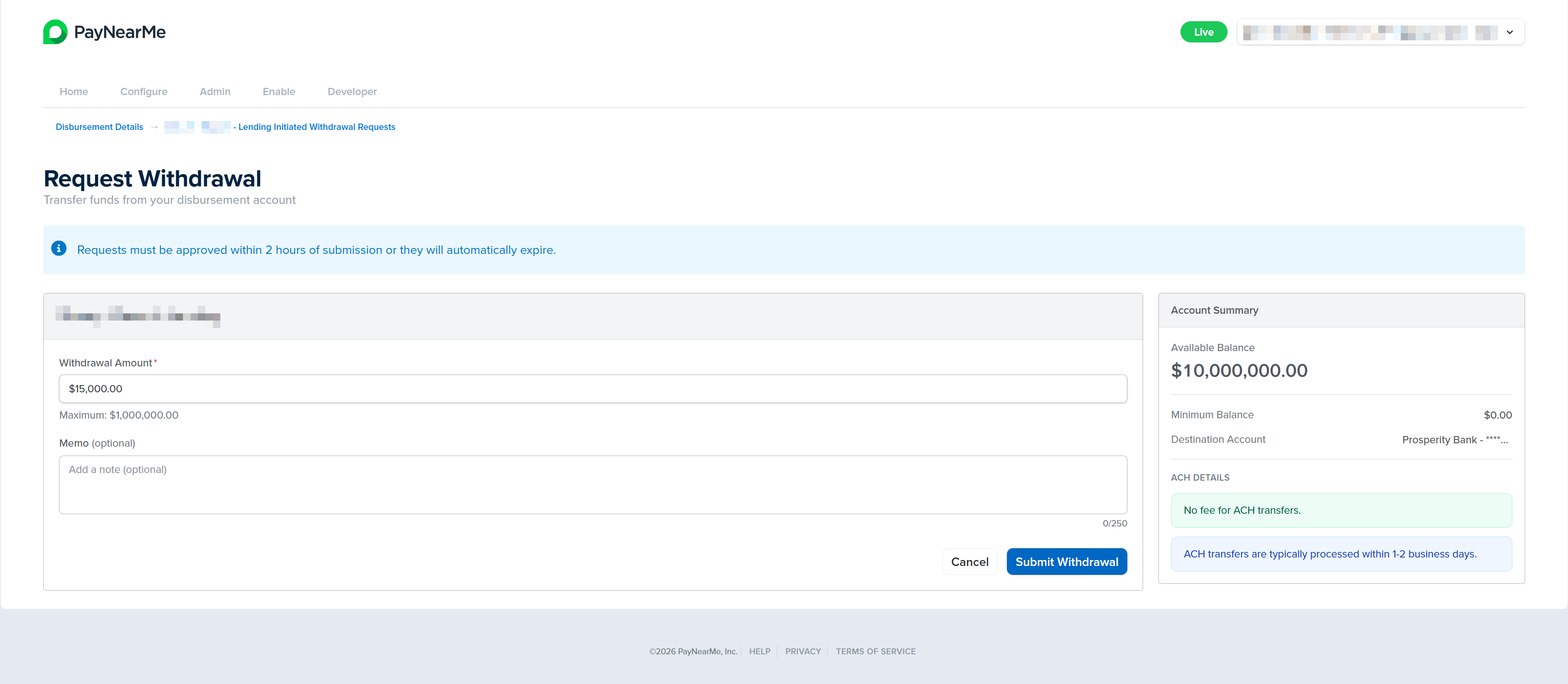
Enter the Withdrawal Amount (up to $1M per transaction). The Withdrawal Amount field includes the following validations:
- You cannot enter an amount greater than $1M per transaction
- You cannot withdraw more than the available balance
- You cannot go below the minimum required balance
-
Enter notes in the Memo field (optional, for internal reference).
-
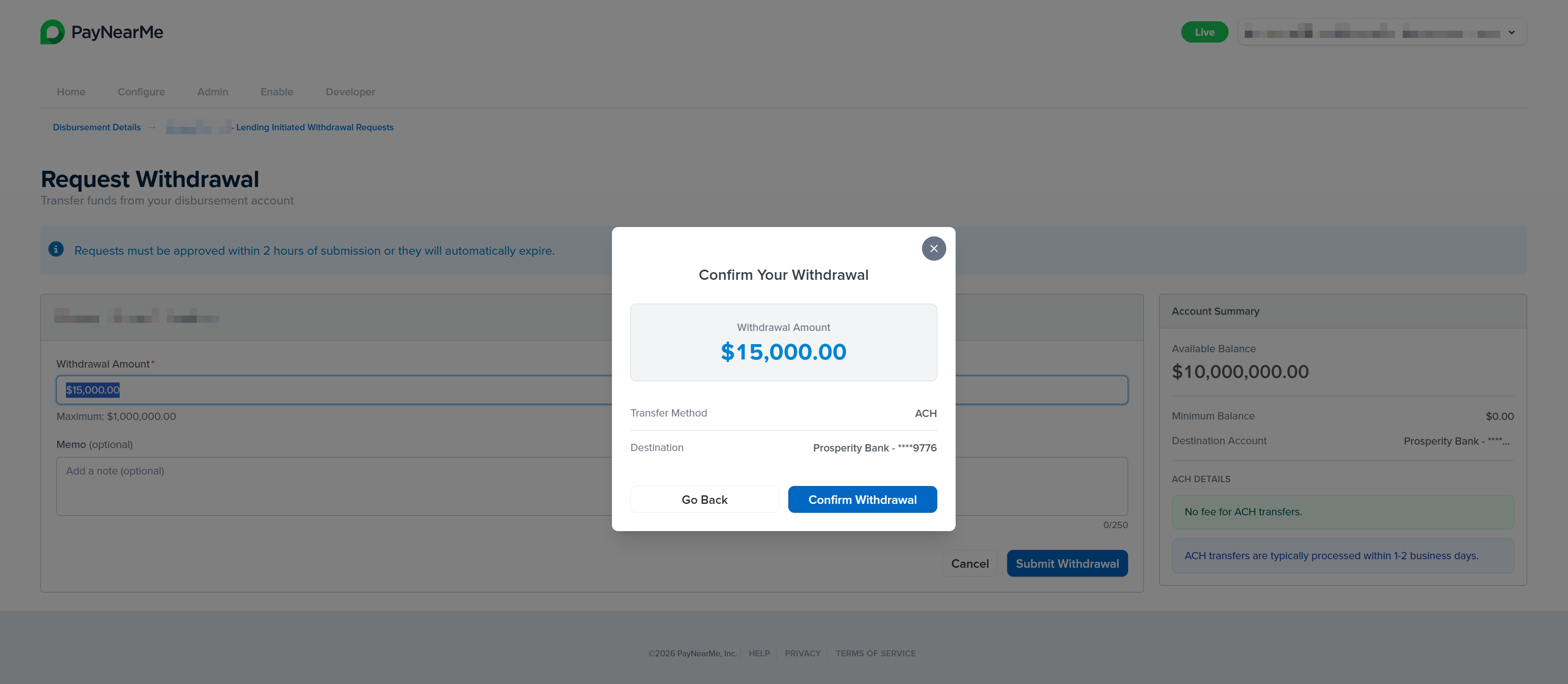
Review details and click Submit Withdrawal. A Withdrawal Confirmation modal displays.
-
If the withdrawal details are correct, click Confirm Withdrawal.
System Behavior
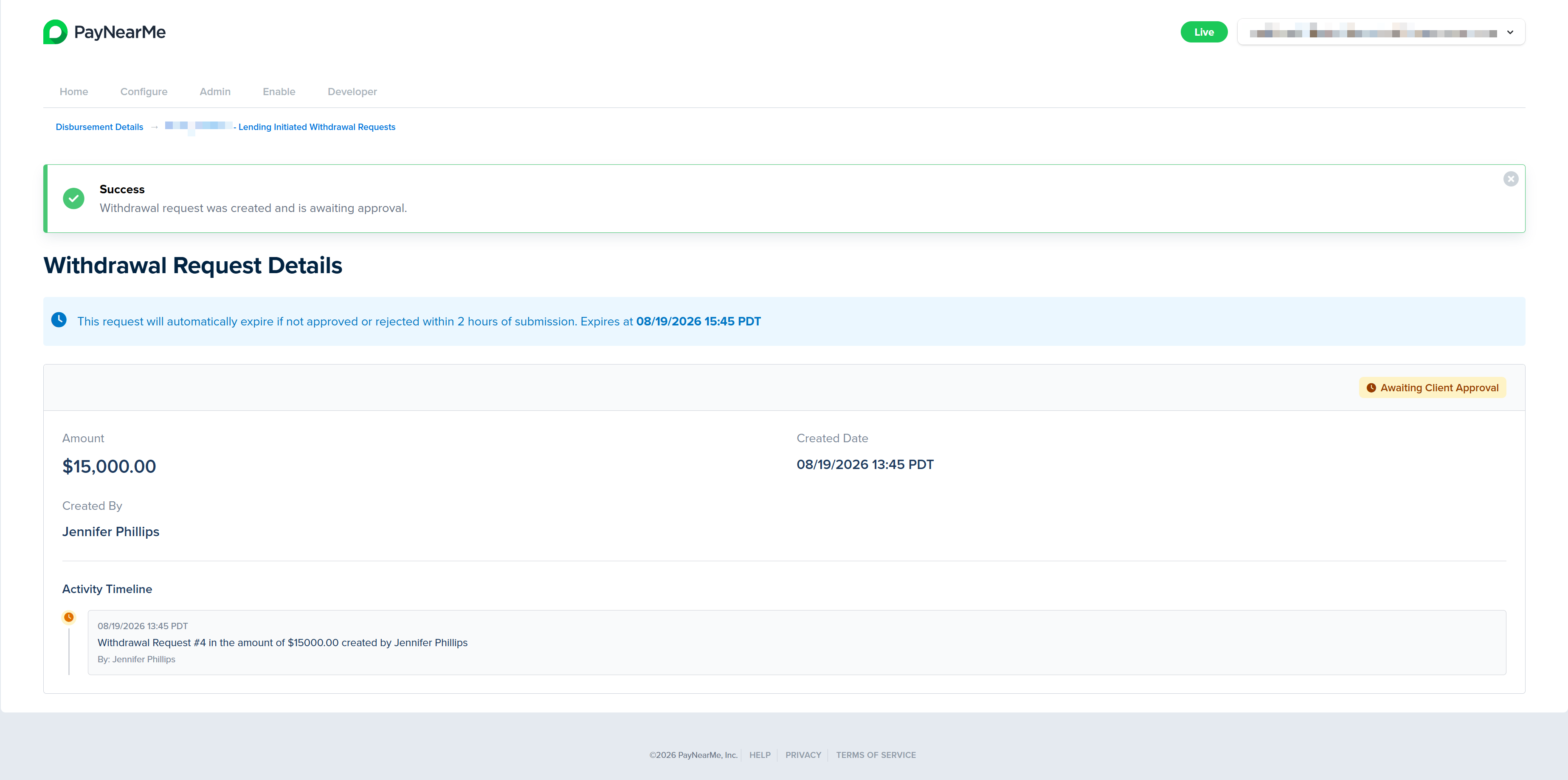
Upon submission of the withdrawal request, the following events occur:
- The balance is immediately decremented,
- The request status becomes Pending Approval,
- Email notifications are sent to users with the Approver role.
Disbursement Withdrawal Approver
The Disbursement Withdrawal Approver is responsible for reviewing and approving or rejecting withdrawal requests.
Approver Workflow
-
Log in to the Business Portal.
-
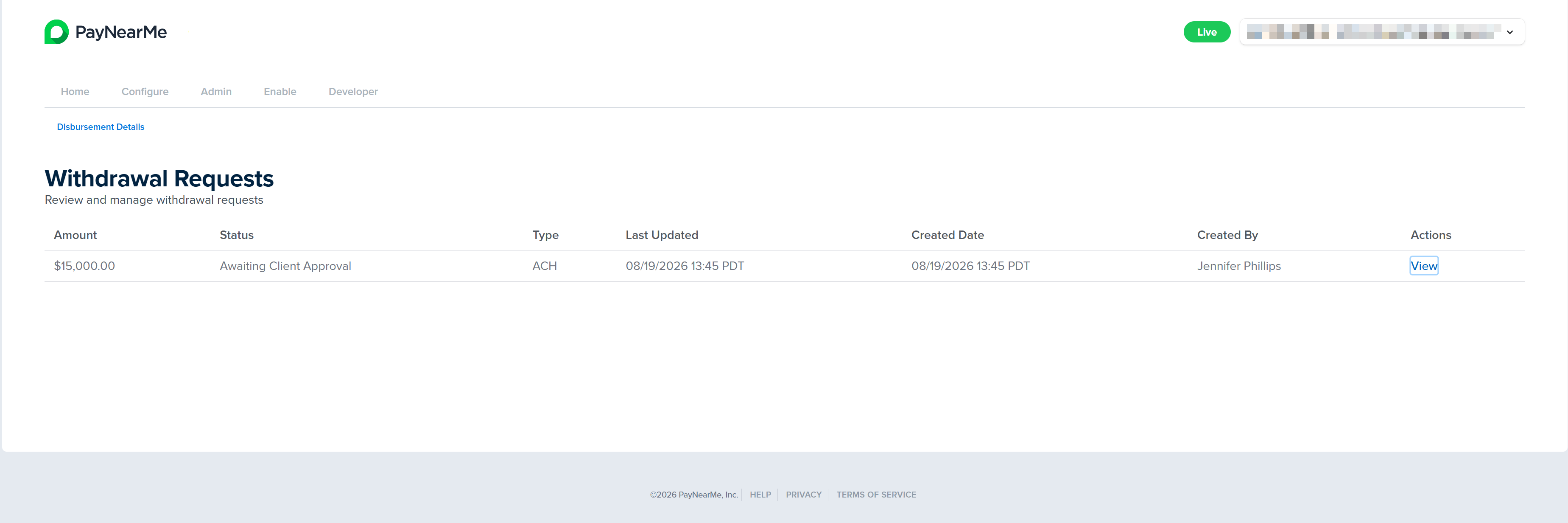
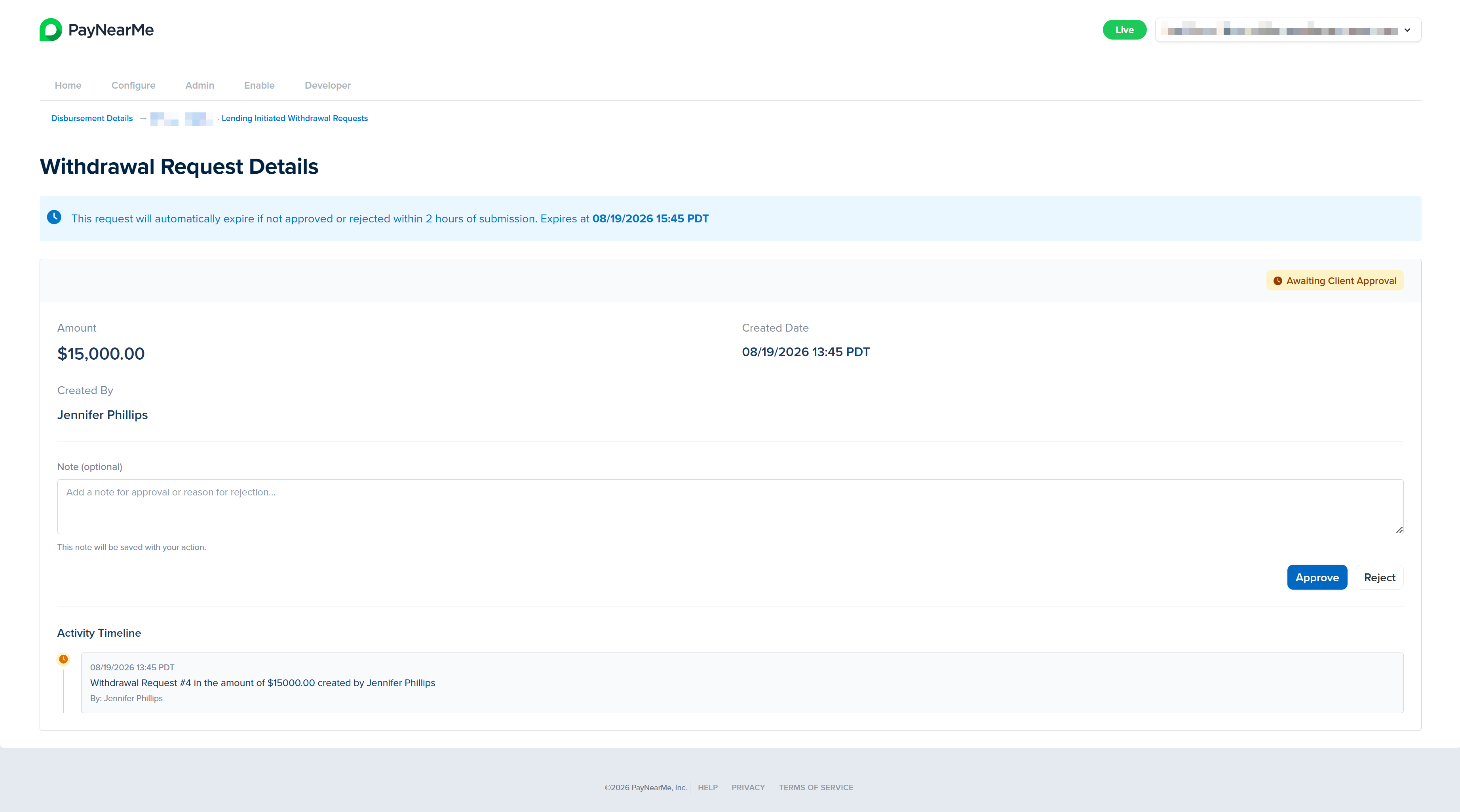
Navigate to Withdrawal Requests and view all Pending withdrawals.
-
Select a withdrawal request by clicking View.
-
Review the details of the request (e.g., amount, account, notes, etc.).
-
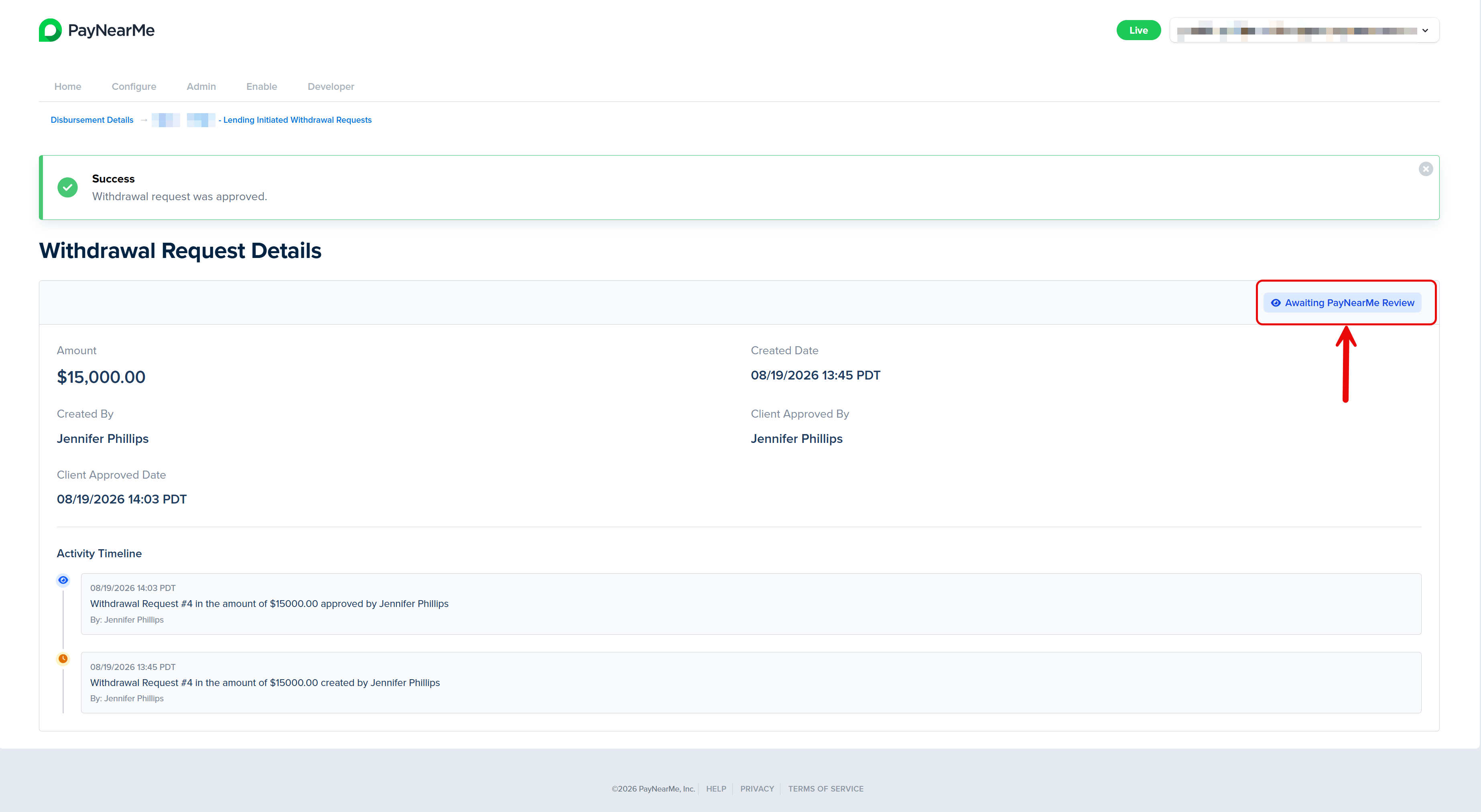
Click either Approve or Reject. A message indicating if the request was successfully submitted to PayNearMe displays. That status of the withdrawal request displays in the upper-right corner of the Withdrawal Request Details screen. Use this screen to track the status of the request from initiation to funding.
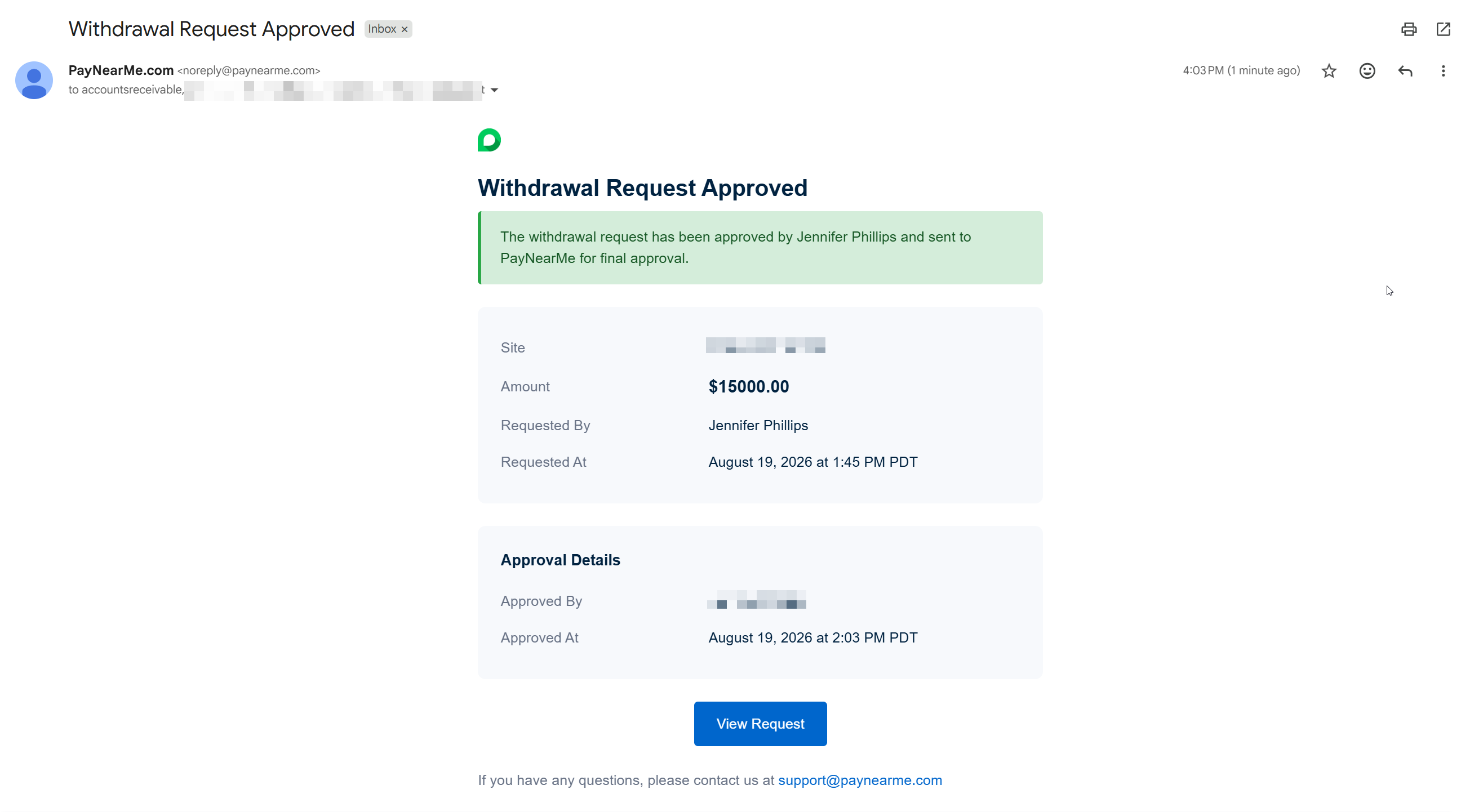
Once the request is approved, both the initiator of the withdrawal and the approver also receive an email confirming the withdrawal was submitted to PayNearMe.
System Behavior
- Approvers receive email notifications when a withdrawal is submitted.
- Once approved:
- The request is sent to PayNearMe for processing.
- Funds are deposited into your bank account within 2–3 business days upon PayNearMe approval.
- Once funds are deposited:
- You will receive an email confirmation notification
Updated about 1 month ago